
Before You Start: What Does the Mobile App Support?
The mobile app is designed for on-the-go recording and note generation. Some features are only available on the web app, such as managing templates, note preferences, payments or past consultations.
What is supported on the mobile app:
-
Log in with CareWay credentials
-
Start, pause and end recordings (consultation with consent, or dictation without consent)
-
Generate a note using your default settings
-
Edit notes
-
Add clinical details before, during and after recording
-
Regenerate notes with a different note type and style
-
View consultation history (last 48 hours)
Quick Troubleshooting Checklist (recommended order)
1) Confirm your device and OS are supported
For security and performance reasons, our mobile app only supports newer operating systems (OS) versions. We recommend updating your device to ensure full compatibility and data protection.
While experience may be reduced with legacy phones or OS, we still encourage you to reach out to us if you encounter issues.
Fully Supported:
-
OS Versions: iOS 18 and later versions; Android 15 and later versions
-
Device Types: Phones only
-
Screen Size: 4.7 – 6.9 inches
2) Make sure you’re using the latest app version
Mobile updates are user-controlled, so two users may have different versions installed.
How to check your version:
-
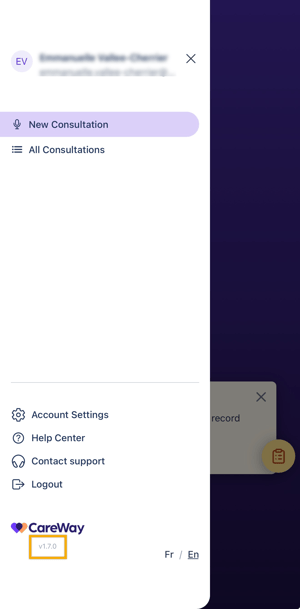
In the app: open the side menu to find the version number.
-
Or check the app version in the App Store / Google Play Store listing.
If you’re not up to date, update the app through the App Store / Google Play Store, then try again.
3) Check your connection (Wi-Fi or cellular data)
The current version does not support offline mode.
If your connection drops:
-
The app can buffer for ~5 minutes, then the recording may stop.
-
You must manually resume the recording once your connection returns.
If the recording stops while your phone is in screen saver mode or the app is in the background, you may not see an obvious warning (this is planned to improve in future versions).
4) If audio is missing or recording pauses unexpectedly
During recording, if you receive a call:
-
If you ignore it: the recording continues normally.
-
If you answer: the recording is paused.
-
On iPhone, the recording resumes automatically after the call.
-
On Android, make sure to restart the recording after the call to continue the consultation.
-
5) Confirm microphone permissions
If audio capture isn’t working, your microphone permissions may be blocked. Upon your first connection on the app, a pop-up message will prompt you to allow permissions. If this is not the case, you can do so from your phone settings.
-
iOS: Settings → CareWay → Microphone → Allow
-
Android: Settings → Apps → CareWay → Permissions → Microphone → Allow
Then fully close and reopen the app and try a short test recording.
Common Problems and How to Fix Them
A) I can’t download, update, or open the app
-
Confirm your device/OS is supported (see above).
-
Restart your device.
-
Ensure you’re signed in to the correct Apple ID / Google account.
-
Try updating the app directly in the store.
-
If the app still won’t open, reinstall it.
If it still fails, contact support.
B) The note won’t generate
-
Confirm your internet connection is stable.
-
Close and reopen the app, then try again.
-
If the issue persists, try generating again after a short test recording (to confirm the workflow works end-to-end).
If the problem continues, contact support.
C) I can’t find my mobile consultations or notes on the web (or vice-versa)
CareWay mobile and web share the same consultation history window. Consultations (drafts and generated notes) are available on both platforms for 48 hours.
If it has been more than 48 hours, the consultation will no longer appear. If it’s within 48 hours and still missing, contact support.
D) Recording keeps interrupting
Most interruptions are caused by:
-
Connectivity loss (Wi-Fi/cellular drops)
-
The app going into background/screen saver mode
-
Phone calls
Steps to reduce interruptions:
-
Keep a stable connection.
-
Keep the app in the foreground during recording when possible.
-
After any interruption, verify recording resumed (it does not always auto-resume).
E) The note content isn’t satisfactory (quality or hallucinations)
These issues are usually not mobile-specific (they can happen on web too). If the output is incorrect or unsafe:
-
Edit the note before use.
-
Regenerate with a different note type or mode if available.
-
Contact support and provide examples or context so the team can investigate.
Contacting Support
In the app, open the side panel and tap Contact Support.
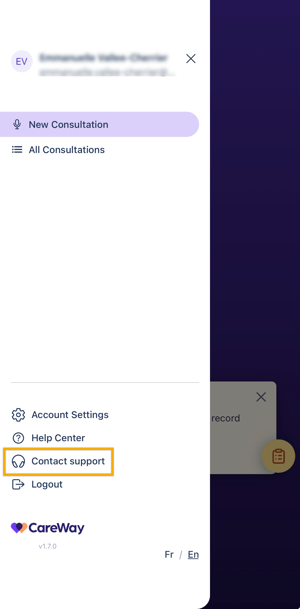
This creates an email with helpful technical context prefilled, which helps the support team investigate faster.
When you contact support, please share the following:
-
Your CareWay account email
-
Device model (example: iPhone 16 Pro, Pixel 7)
-
OS version (example: iOS 18.2 / Android 15)
-
CareWay Mobile App version (example: v1.8)
-
What happened + steps to reproduce
-
Date/time of the issue (and time zone, if possible)
-
Screenshots or screen recordings if relevant
For urgent support, you can contact the support team by phone at 514-312-2273.