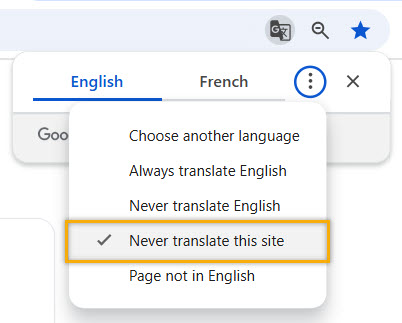
If Google Translate is turned on, it prevents CareWay from functioning properly and may give you an “Oops!” error message when you try to log in.
To confirm that the translator is enabled, you will see Report on the login button instead of Login.
To disable Google Translate, follow these steps:
-
Open the Chrome browser.
-
Go to the site: https://app.coeurway.com/login.
-
In the right corner of the address bar, locate the Google Translate icon.
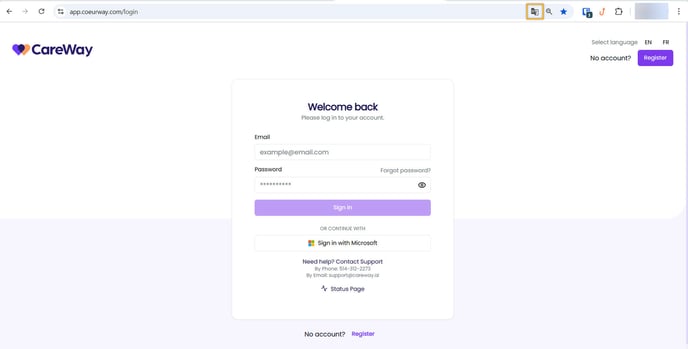
- If this button is not visible directly in the address bar, click on the three dots in the top right corner of the screen, then select Translate.
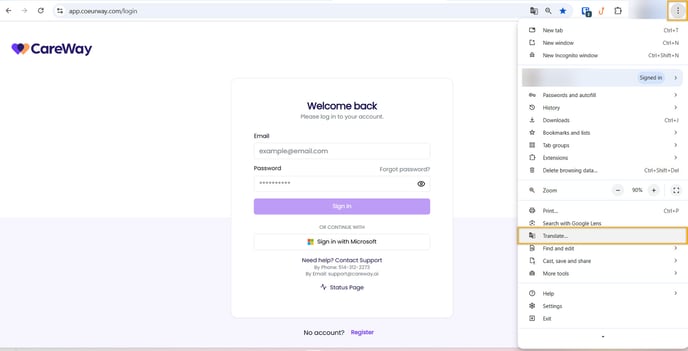
- If this button is not visible directly in the address bar, click on the three dots in the top right corner of the screen, then select Translate.
- A window will open. Click on the three vertical dots and select Never translate this site.