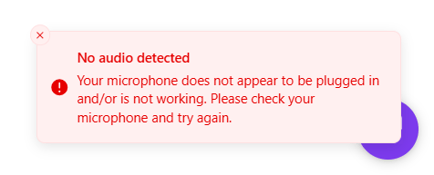
How to fix the problem
Check that the correct microphone is selected
-
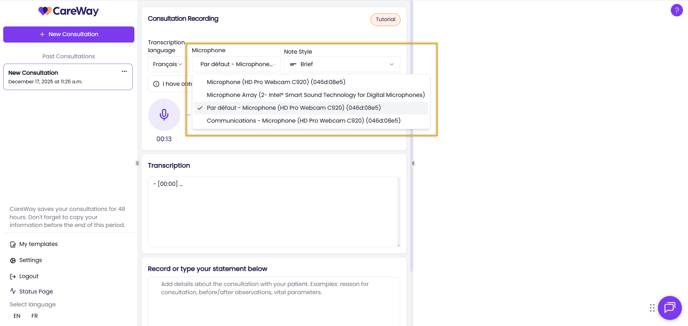
During a consultation recording, locate the Microphone section in CareWay.
-
Make sure the active microphone is the one you are using.
-
If multiple microphones are available, select a different one and perform an audio test.
Check that the microphone is working properly
-
Ensure your microphone is correctly connected to your computer (if you are using an external microphone or headset).
-
Make sure the microphone is not muted, either on the device itself or in your computer settings.
-
Check your computer’s audio settings to confirm the microphone is detected and receiving signals.
-
Speak into the microphone and check that the input level or audio indicator responds.
-
If possible, test the microphone on another device to confirm it works correctly.
Allow microphone access in Google Chrome
-
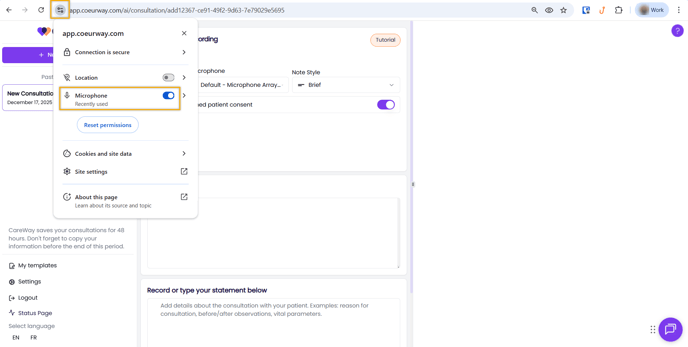
Click the settings icon to the left of the browser’s address bar.
-
In the menu that appears, locate the Microphone section.
-
Select Allow.
-
Make sure the correct microphone is selected in your CareWay account.
-
Refresh the page and try recording again.