
- Download the Mobile App
- Supported Devices
- Logging In and Creating an Account
- Settings
- Permissions
- Obtain Help
- Tips & Best Practices
CareWay now offers a mobile app for quick tasks like recording consultations and generating notes. For full functionality, switch to the CareWay web application on your computer.
Download the Mobile App
The mobile app can be downloaded the following way:
-
Open the App Store (iPhone) or Google Play Store (Android).
-
Search for CareWay.
-
Download and install the app.
-
Open the app and sign in using your usual credentials.
Supported Devices
The CareWay mobile application is optimized for specific devices and operating systems. Please see the support levels below:
Fully Supported
-
OS Versions: iOS 18 and later versions; Android 15 and later versions
-
Device Types: Phones only
-
Screen Size: 4.7 – 6.9 inches
Not Supported
-
OS Versions: iOS 17 and below; Android 14 and below
-
Device Types: Tablets
-
Screen Size: Less than 4.7 inches or greater than 6.9 inches
Logging In and Creating an Account
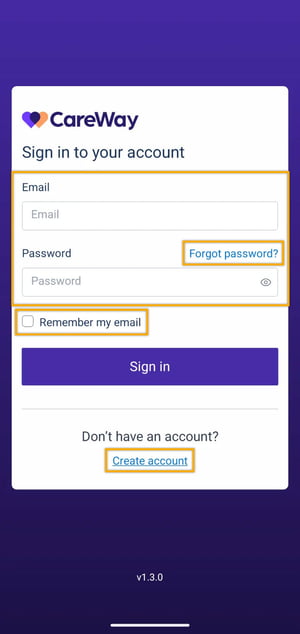
You can log in to the mobile app using your CareWay account email and password.
-
Use the option Remember my email to save your email for faster login.
-
Use the option Forgot password? to reset your password.
If you do not have an account, click on Create account to be redirected to the browser application.
-
The app automatically uses the language of your device on the login page at the time that the app is downloaded.
-
The Create Account and Forgot Password options only appear when the app is allowed to save your data.
Settings
On the mobile app, you can only view your settings. Modifications must be made via the web application.
To access your settings via the mobile app:
-
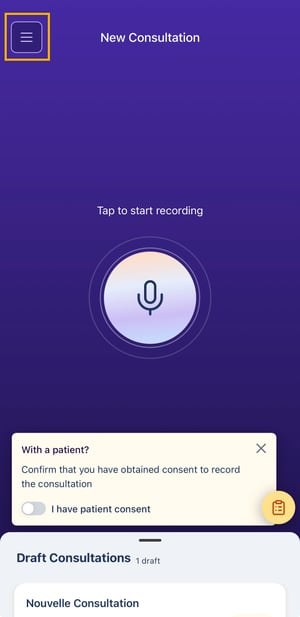
Click on the 3 line icon at the top left of the screen.
-
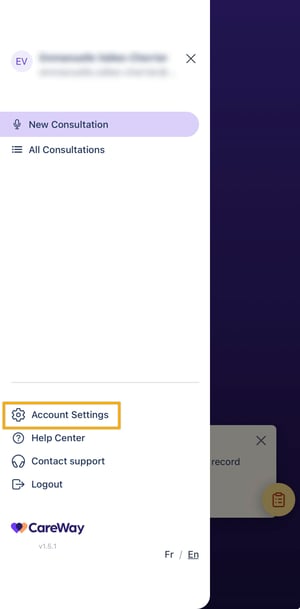
Click on Account Settings at the bottom left
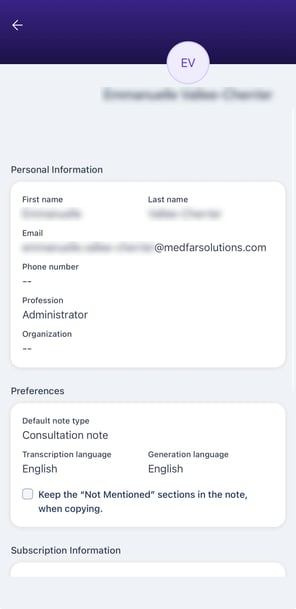
A link at the bottom of the page redirects you to the web app in your mobile device’s browser.
Learn more about changing your settings: Updating my Default Preferences
Permissions
The app requires access to your microphone in order to record consultations. Upon first use, a pop-up will prompt you to allow access.
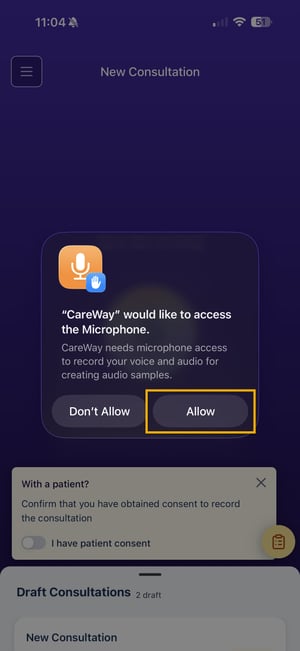
If this is not the case, permission can be changed in your phone settings.
Apple Devices (iPhone)
-
Go to Settings > CareWay.
-
Enable Microphone access.
Android Devices
-
Go to Settings > Apps > CareWay > Permissions.
-
Allow Microphone access.
Obtain Help
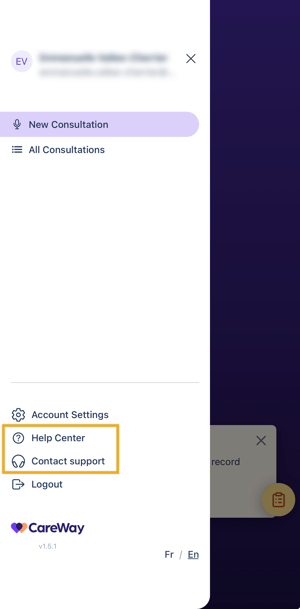
Access help from the left-hand menu. Click on:
-
Help Center to access the knowledge base containing a variety of articles.
-
Contact Support to send an email directly to the team for assistance.
When sending an email to support, information such as your phone model, operating system, and default settings is automatically included in the email. It is important to not delete this information.
Tips & Best Practices
-
Ensure your app is always updated to access the latest features and improvements.
-
Use the mobile app for quick, essential clinical tasks such as consultation recording and note generation. For other functions, such as creating templates or modifying your settings, switch to the web application.
-
If you encounter issues, log out and log back in before contacting support.