
Starting a New Consultation
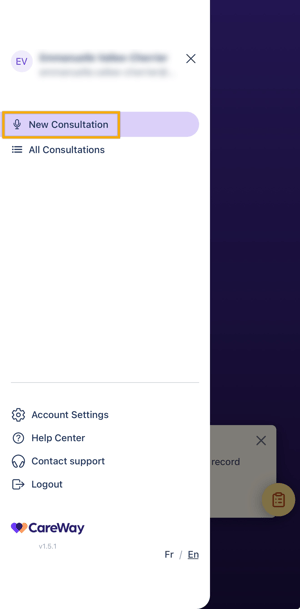
Consultations can be recorded via the New Consultation tab.
Recording a Consultation with a Patient
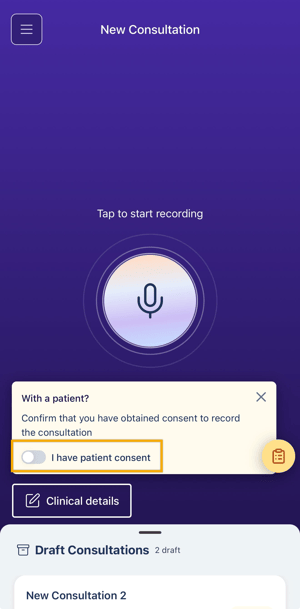
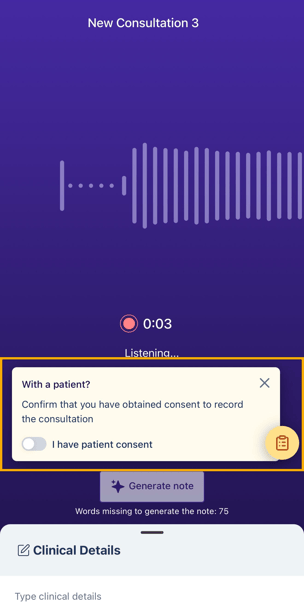
Before recording a consultation with a patient, ensure you have obtained patient consent.
-
Slide the consent toggle to the right to indicate that consent was obtained.
-
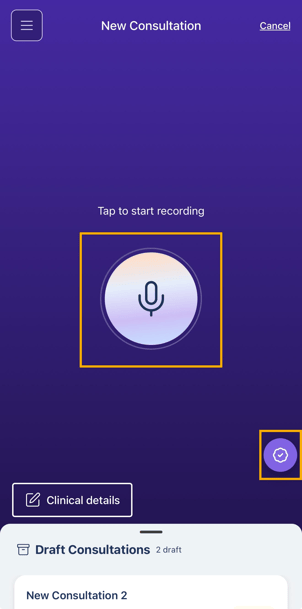
A checkmark will appear in the bottom right corner, confirming that consent was obtained.
-
Tap the microphone to start recording the consultation.
If your patient does not consent to recording, or if you are documenting a note outside of a consultation, you may use free dictation mode, which does not required patient consent.
-
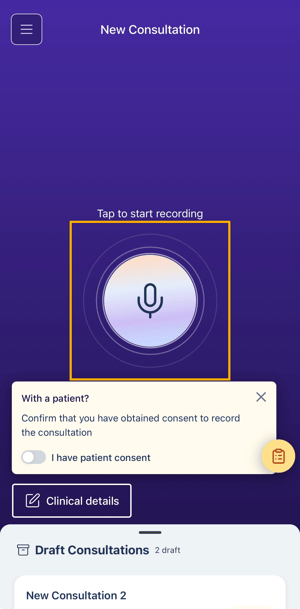
Start recording by tapping the microphone. The Patient Consent toggle does not need to be turned on in this mode.
-
If you start recording first, you can still obtain patient consent afterward by tapping the yellow icon in the bottom right corner.
Managing the Recording
-
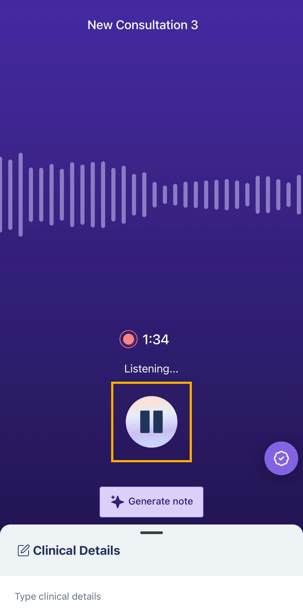
You can pause and resume the recording at any time.
-
When your consultation is complete:
-
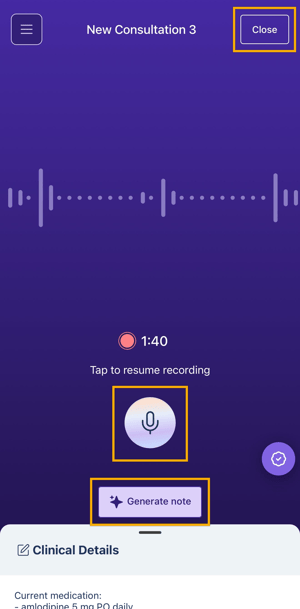
Tap Generate Note to create your clinical note.
-
If you prefer to complete the note later, close the recording. Your consultation will be saved as a draft which you can access later (for a period of 48h).
-
During recording, if you receive a call:
-
If you ignore it: the recording continues normally.
-
If you answer: the recording is paused.
-
On iPhone, the recording resumes automatically after the call.
-
On Android, make sure to restart the recording after the call to continue the consultation.
-
Adding Clinical Details
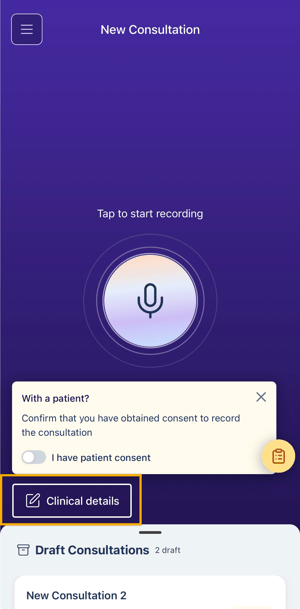
The Clinical Details section allows you to enrich the final note by adding observations, clinical data, or additional analyses. It can also be used to include information that was not mentioned during the patient consultation or to add free text.
-
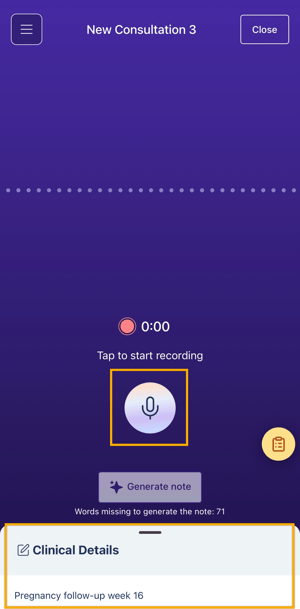
Add clinical details before starting the recording.
-
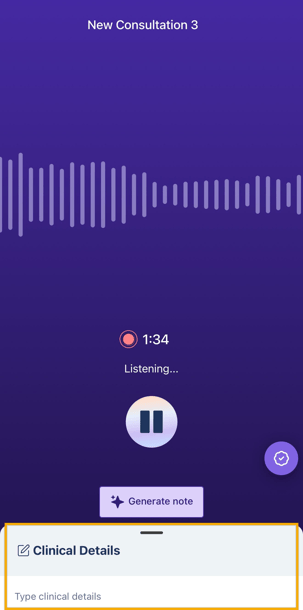
Add clinical details during or after the recording and before generating the note.
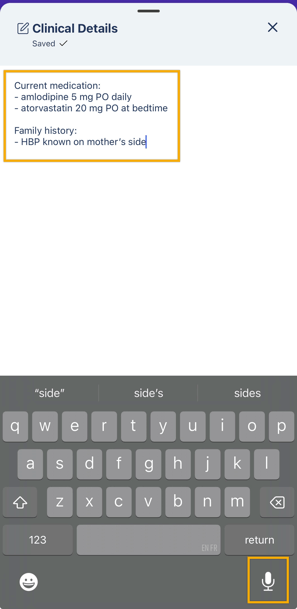
You can enter clinical details using the keyboard or dictate them using the voice dictation feature integrated into your mobile phone.